1
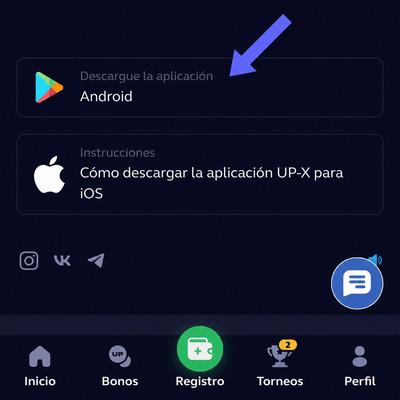
Open the Download Page
Open the page in your phone browser and press the download button for your device.
The UP X application lets you open the platform from your phone with convenient access optimized for mobile screens. On this page, you can learn how to download, install, and keep the app updated.
The guide covers options for Android, iPhone, and computer. Before starting the download, check your operating system and available device storage.

The process is completed in three stages. The images show the general path from download to opening the application.
Open the page in your phone browser and press the download button for your device.
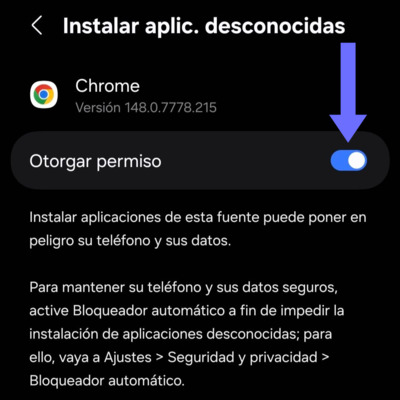
Open the downloaded file and confirm the installation. On Android, you may need to temporarily allow this action in the settings.
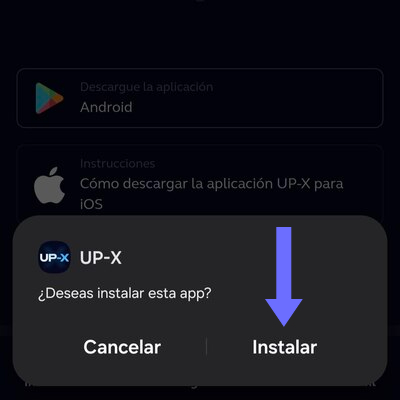
When installation is complete, launch the app from the icon created on your screen and sign in with your usual details.
The Android mobile version is distributed as an APK file. To begin, open this page on your phone, press the download button, and wait for the file to finish saving. The required time depends on your connection speed and available storage space.
Before installing the UP X app, make sure the file name matches the application and that the download is complete. Then open the APK from the browser notification or the Downloads folder. Android will display a confirmation screen with the required permissions.
If the system blocks installation, open the security settings and allow app installation from the browser you used. This option may appear as “install unknown apps.” Enable it only to complete the process, then disable it again once the application is installed.
When finished, the UP-X icon will appear alongside your other applications. You can log in with an existing account or continue registration from the same device.
On iPhone, the mobile experience works through Safari and adapts to the screen size. Open the platform, tap the Share menu, and choose “Add to Home Screen.” Access will then be available as an icon, similar to an installed app.
This method does not require downloading an APK or changing iOS security settings. The shortcut opens the current platform version, so it does not use the same amount of storage as a conventional app and does not require manual installation.
To keep access stable, use a recent version of iOS, allow the necessary cookies, and avoid private mode when you want to keep your session. If the icon stops opening correctly, delete the shortcut and create it again from the current page.
The mobile interface keeps the main features, category navigation, and account area. The same access can be used on iPhone and iPad, while Android users can choose between the installed application and the web version.
On Windows, macOS, or Linux, installing additional software is not required. The platform can be opened in Chrome, Edge, Firefox, Safari, or another updated browser. This option lets you use UP-X on a large screen without taking up storage with installation files.
For faster access, save the page to your bookmarks or create a desktop shortcut. Some browsers also allow the page to be installed as a web app. In that case, it opens in a separate window but continues to use the online version and receives updates automatically.
If you share the computer, avoid saving the password and log out when finished. It is also advisable to check that the browser is not autofilling credentials from another account.
| Option | Installation | Update | Recommended Use |
|---|---|---|---|
| APK for Android | Downloadable File | Manual When a New Version Is Available | Frequent Access from a Phone |
| Access on iPhone | Icon from Safari | Automatic | Mobile Use Without External Files |
| PC Version | Not Required | Automatic in the Browser | Large Screen and Desktop Navigation |
Updates may include stability, compatibility, or design changes. If you use the Android APK and a new version becomes available, download the updated file from this page and install it over the existing version. Normally, you do not need to remove the previous application.
If the app does not open, closes by itself, or shows an outdated screen, restart the device and check the connection. Then clear the cache from the Android settings. If the problem continues, remove the application, download the APK again, and perform a clean installation.
On iPhone and computer, changes are applied when the web version is opened. If you do not see the update, reload the page, close the browser, and clear temporary data. Recreating the shortcut can also resolve errors related to a previously saved address.
Use only the button available on this page to download UP-X. Do not install modified copies, files sent by third parties, or versions that promise additional features. Before entering personal data, verify the address open in your browser.
Keep the operating system updated, protect the device with a passcode or biometrics, and do not share passwords or confirmation codes. These measures are important in both the application and the web version.
Choose the option compatible with Android, iPhone, or computer and follow the installation steps. Use the platform responsibly and set appropriate limits.
Download Now